

Computer + TV
Connect a computer or mini PC to the TV by HDMI, open the player in a browser, and keep it running full screen.
FROM BROWSER TO BOARD
DisplayFleet’s player opens in a browser on a device connected to your display. Pair that player with a code, then choose what its screen should show.
THE FIRST SCREEN
Choose a template, add your message, and preview it in DisplayFleet.
Create a location and screen in your account. Assign the board or a schedule to that screen.
On the device driving your TV, open app.displayfleet.com/player in a capable browser. The player displays a pairing code.
Open Players in your account, enter the code shown on the TV, and choose the screen you prepared. Edit the board later from your browser.
CHOOSE YOUR PLAYER DEVICE
DisplayFleet does not include a TV or player device in the subscription. Start with hardware you already have and test the actual board you plan to show, especially if it uses video.
If you are unsure about a device, send us its model before you buy hardware for it.
WHEN THE CONNECTION CHANGES
After a successful load, the player caches its last board and media so it can keep displaying during a network interruption. New edits and scheduled board changes need a connection; they appear after the player reconnects.
The dashboard shows player status and what each player last reported showing. Owners and admins receive an email when a paired player stops reporting.
See screen management ↗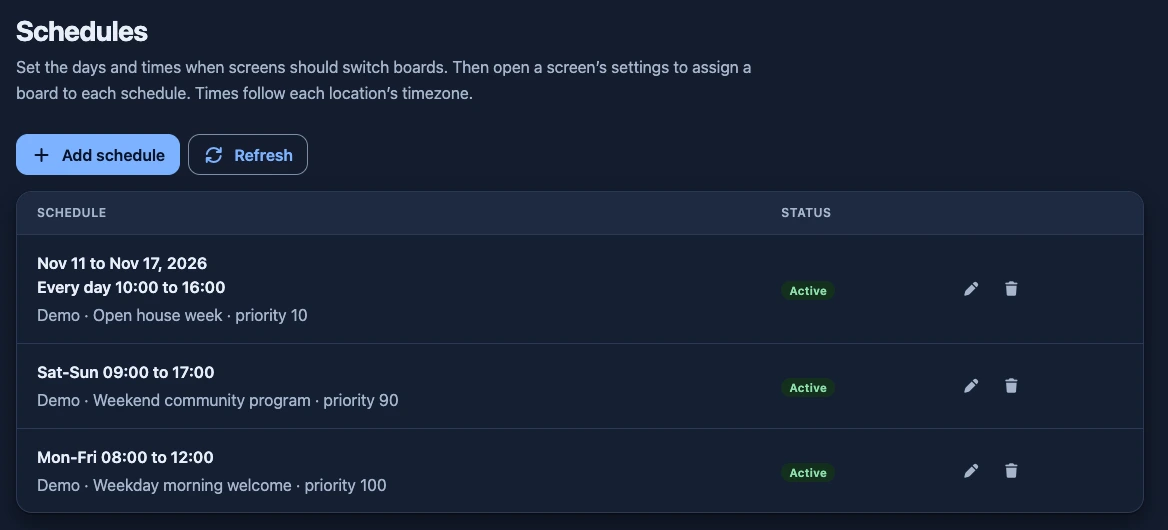
READY TO TRY ONE SCREEN?
Start free for 30 days. No credit card is needed to see the editor, make a board, and try the player on your device.
Start your free trial ↗